Showing posts with label News. Show all posts

Tuesday, August 21, 2018

This App Lets Your Friends Spy On Your WhatsApp

We all know very well that the instant messaging application WhatsApp is the most used communication apps always gives its users the latest features. However, now according to the latest reports, recently a new app appeared on the web that simply lets your friends spy on your WhatsApp.


Image result for This New App Lets Your Friends Spy On Your WhatsApp

WhatsApp is one of the most used communication apps, giving users the latest features. Of course, there are some hidden and that many are aware of.


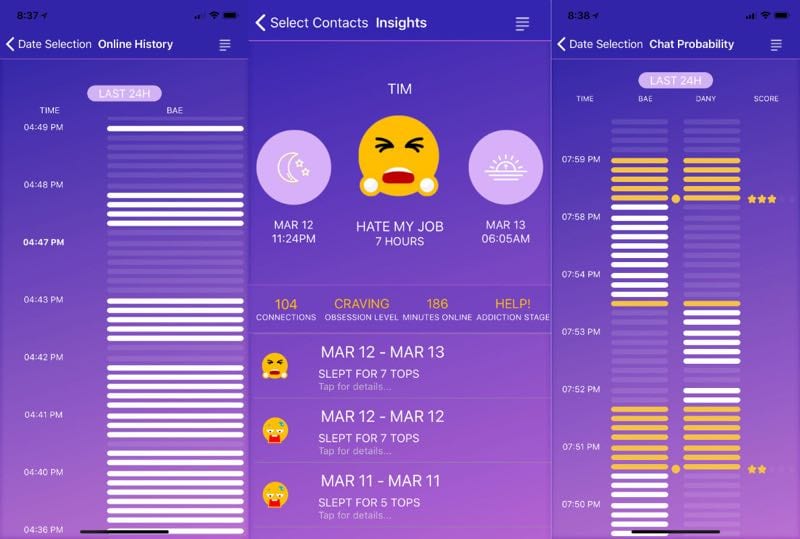
Chatwatch now comes to explore these features, showing you a lot of information about your contacts, even some that you thought were not possible.


Also Read : HOW TO INCREASE YOUR SNAPCHAT SCORE IN MINUTES [1000+ Snapscores Daily] [With Proof]


What Chatwatch does is very simple and only uses information that is public about WhatsApp users. This information includes the times when users were online and how long they were online.
With this information, you can extrapolate a lot, from the actual connection time to WhatsApp to who the users were talking to. This last information is not 100% reliable since it is done by estimation.


But Chatwatch goes further and can show when users check if they have WhatsApp messages and how long they are sleeping.
Something curious is that Chatwatch can learn all the connection information, even when users have Last Seen disabled. The way this information is obtained has not been explained.


Chatwatch was available for iOS and Android, but the tech giant Apple’s iOS version has since been removed from the app store without any explanation. The creators of Chatwatch now want to launch a web version, to be immune to these problems.
After all the problems that the social network giant Facebook has had, it is now another of the largest social networking services to give information that many may consider private.


Click Here To Download Chatwatch App 

Sunday, August 19, 2018

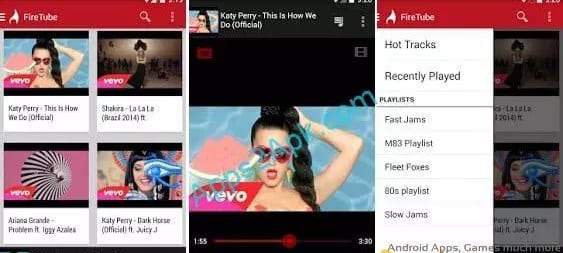
4 Best Third-Party YouTube Apps for Android You Should Try

Let’s have a look at the 4 of the Best Third-Party YouTube Apps for Android You Should Try as they are packed with some of the amazing features that you might not find in the official Youtube app and you may also look for some of the change in your media streaming apps. And these apps are perfect then. So have a look at complete guide discussed below to proceed.


youtube third party apps 2018

Well, we all are using Youtube for a very long time but I’m the type of person who easily gets bored from the same things so I always look for some change and that was the reason I researched for the Youtube alternative so that I can have the app that must have some extra features along with the change in design so that I can have a fresh look. I analyzed lots of reviews, ratings and download rates and found these 4 apps the best that I used in my android and got amazing results. And now I’m sharing these apps with you so that you guys can also try this on your phone. So have a look at these apps below.


Also Read: How To Download Incompatible Apps In Any Android


#1 New Pipe


4 of the Best Third-Party YouTube Apps for Android You Should Try


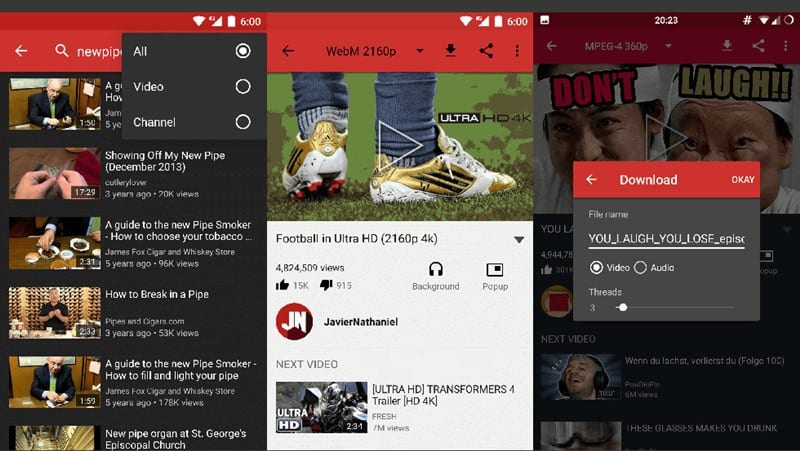
This was the first app that I tried in my android after readings its lots of positive reviews. This is the best ever alternative for the youtube on Android, just make use of this app having the minimal interface with all the functions to play the youtube videos. This application is speedy and you can get the videos to play even when the screen is off. There are many other functions that could be used for the smooth playback of the videos on the Android. Give it a try and you may like it more than enough!!

Download New Pipe App 


#2 Youtube Vanced


4 of the Best Third Party YouTube Apps for Android You Should Try


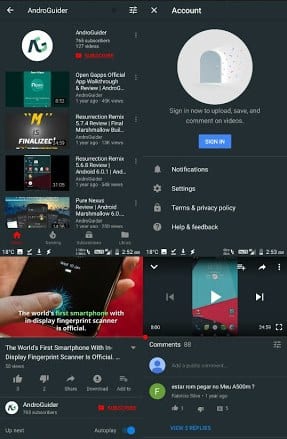
This is the second best youtube alternative for the Android on this list. The reason needs not to be explained about why this app is the best one. It is because the app is completely versatile in playing all the videos from the youtube and also has enough number of functions for the playback. Try it for once and you might end up having this as your only youtube app on the Android. Also this app got most of the positive ratings and also the good download rate.
Also Read: How to Download Instagram Photos And Videos On Android 2018

Download Youtube Vanced App


#3 iTube


4 of the Best Third Party YouTube Apps for Android You Should Try


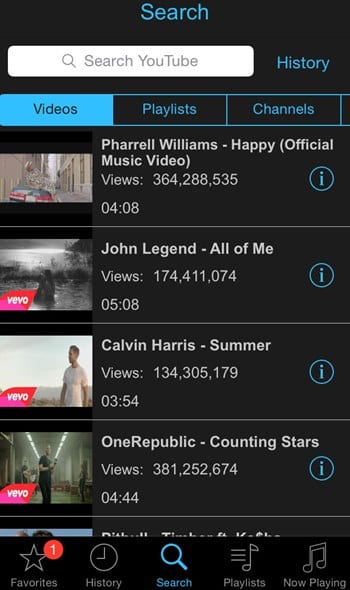
If you are looking for the lite version of the Youtube app so that this will not consume lot of space on the device yet still have the fullest number of function that could let you play the videos online from the youtube, this can be your best choice. Just make use of this app and then give us your opinions how you liked it!

Download iTube App

#4 Firetube


4 of the Best Third Party YouTube Apps for Android You Should Try


Fire up your Android device with the use of this best youtube app alternative on the Android. Again this app is no different than the youtube as you get the videos to be played, screen off playback can be enabled and the ads block feature can be enabled. So must give a try to this app.


Download Firetube App


How To Find Out Who’s Tracking You Through Your Android

If we talk about an Android operating system, the reason people choose Android over other mobile OS is that this platform has different kind of features for every particular purpose. We have managed to collect some of the useful codes for Android users which will help those who’re worried about being tracked.


Image result for How To Find Out Who’s Tracking You Through Your Android


Most of the malware is targeted to an Android operating system because Android is now powering a majority of smartphones. Safety should always be our top priority in these cases. Here we are going to mention few short codes that will help you find the settings of your phones and to find out either your messages and information are being tracked.


We have managed to collect some of the useful codes for Android users which will help those who’re worried about being tracked.


Code 1: *#21#

This code will let you find out whether your messages, calls, and other data are being diverted. You can find details about call forwarding. You can even find out where your data, voice, fax, SMS, sync, async, Packet access, and pad access call forwarding enabled or disabled.


Code 2:  *#62#

If your friend tells you, that your number is saying no-service or no-answer, then you need to dial this code on your smartphone to find out where your calls, messages, and data are being redirected. There are possibilities that your calls are being redirected to one of your cell phone operator’s numbers.


Code 3:  ##002#

This is a universal code to deactivate all call forwarding. This will immediately switch off all the redirections from your phone. If you feel that your call is being redirected, then you can dial this code to stop the redirecting. It will be a good idea to use this code before you have to use roaming so that the money won’t be taken from your account.


Code 4: *#06#

This code is used to find the International Mobile Equipment Identifier (IMEI). This code will be very useful to find the IMEI number of your smartphone. You can note down your IMEI number in a safe place. With the help of IMEI number, you can find your phone if someone steals it.


Code 5: *#*#4636#*#* or *#*#197328640#*#*

This special code allows anyone to track your location and also determine whether someone is following you.

Type in the following code in dial pad and then select the section called UMTS Cell Environment, then choose UMTS RR info. Now note down all the numbers under the Cell ID.


Now move to the main menu and then click on MM info tab > Serving PLMN. Now note down the numbers under Local area code (LAC).


After noting down these two numbers open the website opencelid and select the fourth tab to the left. From there you can determine the location on the map of the basic station that your phone is connected to.

Also Read : How Safe is it to Use Finger Recognition with Your Bank App?

How To Protect Yourself From Spies


Above, we have listed a few codes which would help you to figure out whether you are being tracked or not. However, these codes can’t keep the hacker or spies away from you. So, you should take some appropriate steps to protect your computer against criminals and spies.


#1 Using an encrypted message is the best option to keep your phone away from spies. You can use secure messaging apps like Wickr, Telegram, Chare or Signal which encrypts all your messages.


#2 Don’t ever enable the option ‘Unknown Sources’ on your Android smartphone. The feature is been there for a reason and it provides good security to your Android. If you still choose to enable the option, make sure to disable it after using.


#3 Don’t do banking transaction from your Android smartphone. There are banking apps available in the Play Store, but they are not always the best choice. If possible, don’t store important credentials on your Android smartphone.


#4 There are lots of apps available on the web which claims to find out who’s tracking you. Those apps are often a scam and it just traps users. You should always rely upon your cell phone operator to offer you tracking services. Websites or apps that claim to find out the location of other people are almost certainly acting with criminal intent.


So, these are the 5 codes which will help you to find out more about the settings of your phone and to find out whether your messages are protected or not. Hope you like the article, share it with your friends too!

Thursday, August 16, 2018

Best Apps for Book Lovers

With so many books to read, and so little time to read them all, it can be hard to choose between an ebook or hard copy. Get through your list with these apps!


Image result for Best Apps for Book Lovers

If you love to read, then you probably have a long to-read list that grows longer by the day. It’s time to quickly make it through your reading list with the following apps for book lovers. These apps are the perfect go-to when you have a long subway commute, travel plans, or even a night to yourself.


1. Goodreads


Image result for Goodreads

This is definitely one of the best apps for keeping track of your reading, because the app will update with how far you are in your book. Goodreads also has a social aspect so you can see what your friends are currently reading. It’s great if you want recommendations because you can simply scroll through the books that your friends and family are reading now, and find out what they’ve read in the past. You can also take part in virtual book clubs that have monthly discussions. Goodreads even has the occasional giveaway where you set yourself a reading goal for the year to enter to win a prize.

Download GoodReads App

2.Libib

Image result for 2.Libib

Have you ever wanted to have a better organizational system for the mess of books on your bookshelf? Libib is the perfect solution to your problem because it is an app with an easily searchable database of books. This database even has a bar code scanner feature so you can look up what books you have. With Libib, you can virtually catalogue your books, so if you lend a book to someone, you will know exactly where it goes and who has it.

Download Libib App 


3.Scribd

Image result for 3.Scribd

Fair warning, this app isn’t free. But many believe that the small subscription fee is worth it. If you’re the forgetful type of reader who always forgets to bring a book anywhere you go, then Scribd is perfect because it gives you access to tons of books all on your phone. It even has a great selection of audiobooks and magazines.

Dwonload Scribd App

4.Serial Reader

Image result for Serial Reader

So, you love to read, but you can’t seem to find the time to read. You can never say you don’t have time to read if you have this app on your Android. With Serial Reader, you get daily bite-sized passages from classic books. Each of these short passages can be read in 20 minutes or less so it’s sure to fit into a busy schedule. This app is perfect because many people are too intimidated to read classic books because they’re too long or too confusing. Serial Reader boils down these classic books into easy-to-read paragraphs.

Download Serial Reader App 


Also Read : HOT KNOT: ANOTHER COOL WAY OF SENDING FILES

How Safe is it to Use Finger Recognition with Your Bank App?

As fingerprint passwords become more popular with newer phones, the debate over password-protection methods has become a hot security topic.


Image result for How Safe is it to Use Finger Recognition with Your Bank App?

Apps have made online banking easier, especially when a fingerprint can be used as a password. But how much safer is it to use finger recognition than a typical passcode or passphrase? The answer: it’s a lot safer than regular passwords. Passwords can be easily guessed, which could lead to identity theft and stolen money — but you can’t easily hack a fingerprint. If you want to further protect your phone from hacking, use the anti-hacking feature to ensure that your personal information will not be compromised by dangerous online attacks:


Download Anti Hacking App


Whichever type of phone you’re using, you can further secure yourself by setting up multiple fingerprints in the password section of your phone’s settings. Not only does it buff the security a bit, but it makes signing in much faster, which is good for those who often switch hands while using their phone. (Bonus points if you can learn to type and tap on your phone while it’s still in your pocket!) Just be sure not to accidentally cancel the fingerprint login by tapping too fast, but if you do, you can always reset it the next time you open the app.


Aslo Read : How To Use Both Data & Wifi at the same time

This system isn’t entirely foolproof, as people can still steal your information online through shopping sites or email scams, but it provides safer and more convenient means for banking on the go. You should continue to practice safe habits with your phone in general and while you bank online, but if people aren’t able to unlock your phone with their fingerprint, they won’t be able to log into your bank account either. Fingerprint recognition was tested for quite a while and is now being included as a feature in almost every smartphone. The technology will only improve from here.


Wednesday, August 15, 2018

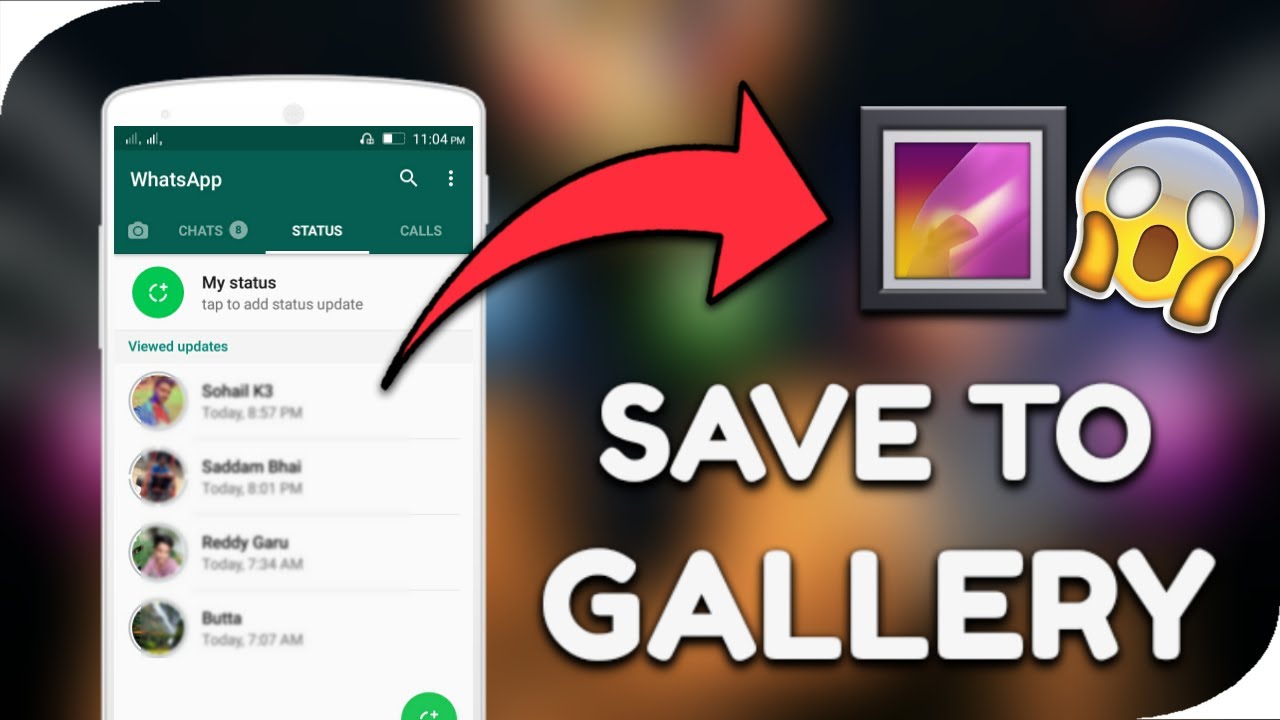
How to Easily Save WhatsApp Stories

With this little trick you can easily download WhatsApp status updates directly to your gallery and you can use them as normal media files to share and save on your phone.


Image result for save whatsapp stories

Method 1:


  1. Download an Install an application called WhatsApp stories or Status Saver from the play store.
    save whatsapp video status
  2. You must have already viewed multiple stories on WhatsApp Status before they’ll appear on the ”WhatsApp stories App.
  3. Select the photos or videos you want to save and tap on the save option.
    save whatsapp video status
  4. All files will be saved to your device Gallery.

And there you have it, that’s the first method that you can use it saving WhatsApp video status.

Also Read : How To Save Snapchat Videos | Updated Trick

Here’s the second method

Method 2:


It will interest you to know that the WhatsApp video status that you want to save is already saved in the memory of your device. All you have to do is locate a unique hidden folder called named ”statuses”, unhide the folder, copy the status of your choice to a new folder.

  1.  Go to your device memory, located the Whatsapp folder.
  2.  Unhide hidden folders by using more > Show hidden files.
    save whatsapp video status
  3.  On the WhatsApp folder tap on Media > Statuses.
    save whatsapp video status
  4.  Copy whichever image or video you want to save.
  5.  Paste copied file(s) into a new folder. Probably your gallery.
 

Status Saver is an amazing App that can be used to save WhatsApp statuses. Status Saver was developed by the same owner of Status.wiki .

Download Status Saver App


HOT KNOT: ANOTHER COOL WAY OF SENDING FILES

This is one feature that up to 80% of android users do not know its use. The Hot Knot is a new feature that was recently installed on android devices.Image result for hot knot


How does it work?

 You can transfer files from one android device to another without using Bluetooth or wifi.


But for this to work, both devices need to have Hot Knot and they need to be at about a centimeter close to each other.

Also Read : How to Add Brightness Slider on Status Bar in Android

What can you send?

Well, you can send just about anything.
From photos, videos, contacts, share application data and lots more.
To activate this cool android tip, 

Go to settings, Select Hot Knot, 
Then switch it on, android tips and tricks marshmallow


Note: Devices must be close to each other and both have hot knot enabled to share files.


Monday, August 13, 2018

How to Enable Split Toolbar on Chrome for Android

Google regularly updates Chrome like most of its other products or apps. Unlike some of its other offerings though, the development on Google Chrome is quite transparent. The Mountain View-based company offers several different versions of Chrome such as Chrome beta, Chrome dev, Chrome Canary, etc. These aren’t meant for the end user and are generally less reliable than the stable version. Another way Google tests out Chrome features before pushing them out to stable builds is through Chrome flags. Now, one such Chrome flag can allow users to enable a split toolbar on Chrome for Android.


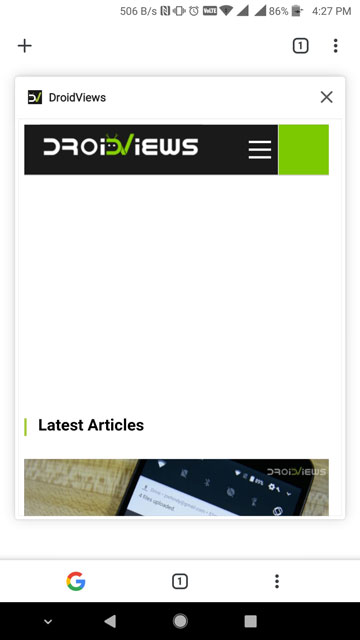
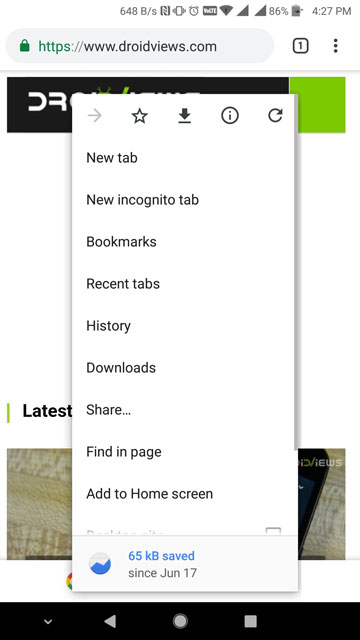
Split Toolbar on Chrome for Android


For the uninitiated, Chrome flags is a hidden section in Chrome. Google hides certain under development settings and features as flags here which aren’t enabled by default for obvious reasons. 

How To Enable Split Toolbar On Chrome for Android


Users can access these hidden settings by visiting chrome://flags. We’ve previously shown you how you can make use of Chrome flags to:


  1. get updated Material Design 2 on Chrome
  2. block redirect ads
  3. make Chrome load pages faster on Android
  4. and move the address bar to the bottom


Some of those flags just may not be available anymore or may have had their names changed or are present in another form. This is expected considering these are features under development and they’re bound to change or disappear altogether with time. An example of this would be the Chrome Home flag which is how we were able to move the address bar to the bottom previously. 

Also Read : How To Customize Your Navigation Bar Without Root

Enable split toolbar on Chrome for Android


So how do you enable the split toolbar? As we’ve already mentioned, this can happen through Chrome flags. However, you’ll need to to be using either Chrome dev or Chrome Canary both of which aren’t meant for reliability. Chrome Canary is usually a lot buggier in comparison to Chrome dev or Chrome beta. I’ve used Chrome dev for long spells in patches and it works very well as long as it does. It is pretty prone to crashing if you’re someone who uses Chrome quite often.


  1. If you’re willing to give it a try, download either of the Chrome versions from the Play Store.
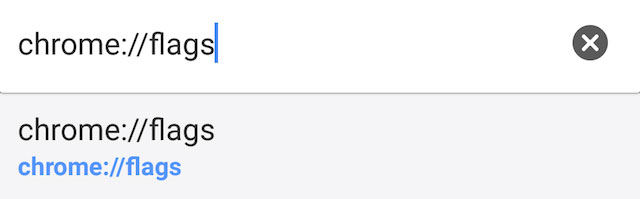
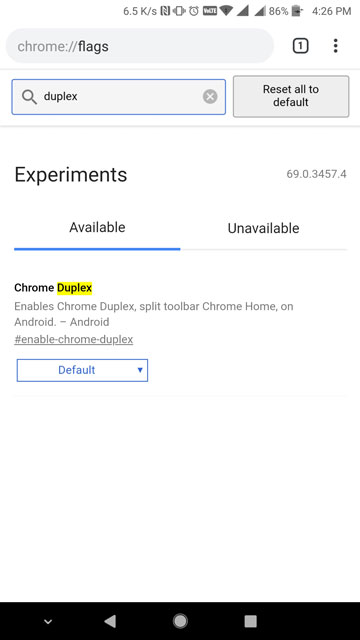
  2. Once you have Chrome dev or Chrome Canary, visit chrome://flags and search for “duplex”. Alternatively, you can directly visit chrome://flags/#enable-chrome-duplex by entering it in the address bar.
    How To Enable Split Toolbar On Chrome for Android How To Enable Split Toolbar On Chrome for Android

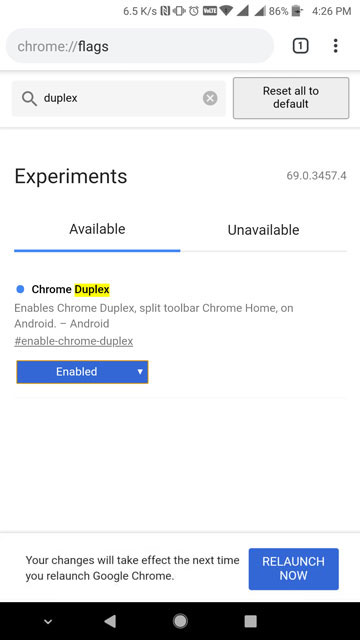
  3. When you have found the flag, tap on the drop-down menu that says Default, by default and select Enable.
  4. You’ll notice a message appear at the bottom with a big blue button that says RELAUNCH NOW. Tap on it and Chrome dev (or Canary) will relaunch.
  5. You’ll notice nothing really changes. Close the browser and relaunch it again.
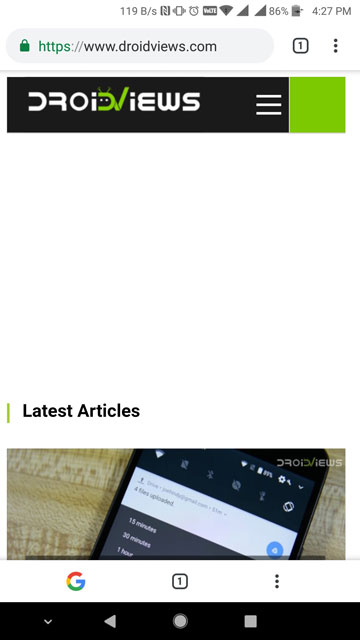
  6. You should now be able to see the split toolbar with one at the bottom as shown in the screenshots below.

    How To Enable Split Toolbar On Chrome for AndroidHow To Enable Split Toolbar On Chrome for AndroidHow To Enable Split Toolbar On Chrome for Android


Sunday, August 12, 2018

How To Play PUBG On PC For Free using Emulator [100% working]

With the 50 million players around the world, PUBG is the most popular mobile game ever. Considering the increasing waves of the games, the Tencent team has officially released the best ever emulator for PUBG mobile. Hence, you can play PUBG mobile on PC with ease. So, the time has come to say Goodbye to some other third party emulator as you can use the PUBG mobile official emulator to play PUBG mobile on the computer.
Play PUBG Mobile On PC

Note: Make sure you have at least 4BG of RAM on your PC or laptop to install PUBG mobile emulator.


Step #1: First of all, download and install PUBG mobile emulator from the below link.

Click Here To Download

Step #2: Open the Tencent Gaming Buddy (PUBG mobile emulator).


Step #3: Once you launch the emulator, it will download some setup and then some game file.

Play PUBG Mobile On PC


Step #4: After finishing the download process, it will ask you to choose the graphics quality you want to play on. You can select from SD 720P, HD 1080P, or Ultra HD 2K.

Play PUBG Mobile On PC


Step #5: Now you have to set some setting on in-game as per your PC. So, just go to the Menu button at the top right corner and click on Settings. 

Play PUBG Mobile On PC


Step #6: Once all done, just click on Save button and enjoy the PUBG mobile version on PC.
You’re done!

Also See : Top 7 PUBG Mobile Tips & Tricks You Should Know

Saturday, August 11, 2018

How To Use Both Data & Wifi at the same time

You can use mobile data and WiFi at the same time. Apps like Super Download and Speedify can boost your internet speed. These two apps let you combine your cellular and WiFi connection for more bandwidth and helps you to keep online when your Wifi stops working.


Use Both Data & Wifi at the same time


Requirements:

  1. Rooted Android device of version 2.2 or higher( Know how to root )
  2. WiFi and Packet Data available at same time
  3. Need to Download Super Download Android App for Android [Paid Version Link] [Free Version Link]

How To Customize Your Navigation Bar Without Root

NavBar animations does exactly as the name implies. It gives your device custom animations when you tap a navigation button, and works without root access. It's a free app on the Google Play Store, and it works on any device with a software navigation bar. Upon opening the app, you'll be greeted with a short intro screen, telling you to toggle the activation switch, and then allows you to pick a button animation of your choice.


On some devices, like the Galaxy Note 8, it may warn you that it didn't detect a navigation bar, just tap "OK" and proceed.


Each of these categories on the main screen has multiple options to choose from. Once you have picked one that you like, it should take effect immediately. It also has an "autostart on boot" option so that you don't have to open the app each time your phone starts up to activate it.

Also See : Top 5 Ways to Screenshot Instagram Stories Without Getting Caught


It's hard to really show the effect with an image, but here's an example of one of the basic animations in the app:


You can also adjust animation settings by tapping the gear icon in the upper right-hand corner, allowing you to adjust such things as animation length, whether it is triggered by a single or double tap, and the option to add a colour overlay to the animation for added effect.

Thursday, August 9, 2018

How to Get Andoid P's New Screenshot Editing App

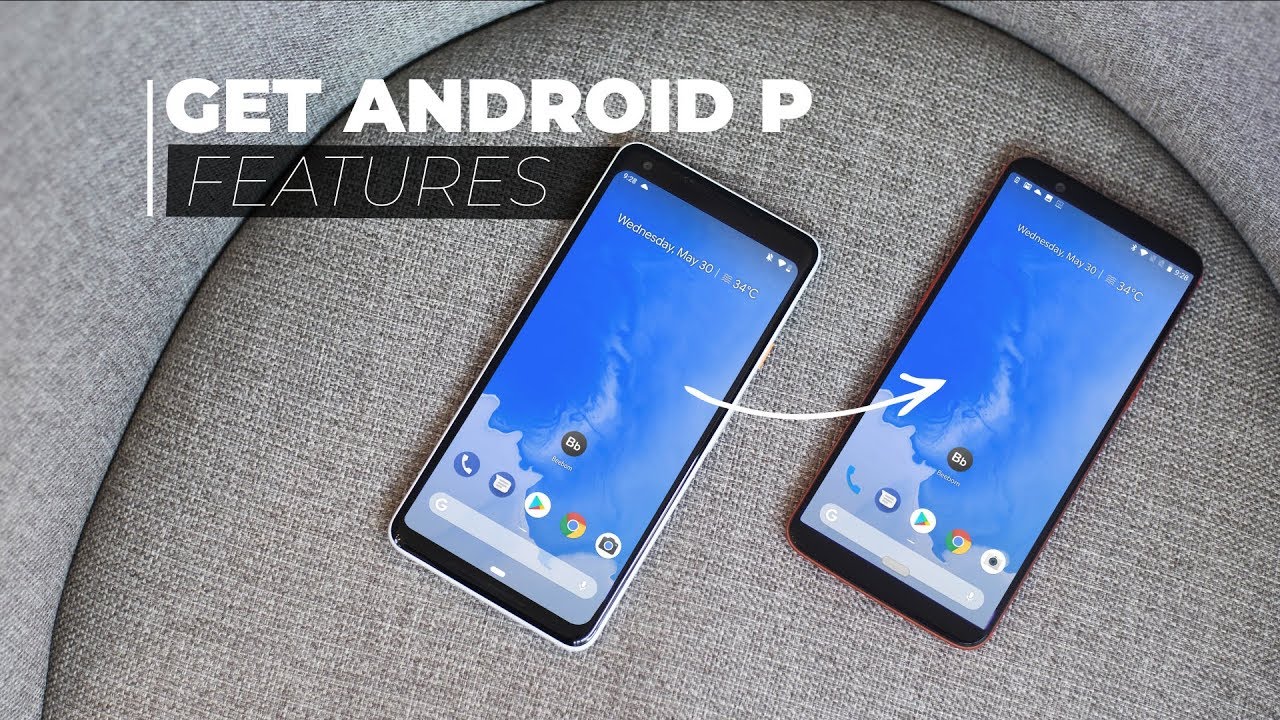
Android P is changing some things up when it comes to taking screenshots on your phone. Don’t worry, the usual power button + volume down combo still exists, but there are new options to quickly take and edit screenshots.

Image result for How to Get Android P New Screenshot Editing App


The first is a new screenshot button that now appears in the power menu. While this could change in later versions of Android P, it’s a great way to take a screenshot without fiddling around with physical buttons (which can be insanely frustrating when you don’t get it right the first time). It appears simply by long pressing the power button, just underneath the Power off and reboot options.


Also See : Top 7 PUBG Mobile Tips & Tricks You Should Know

One way “stock Android” has been lagging behind manufacturer versions of the OS is native screenshot editing. There’s no way to doodle or markup your screenshots immediately after snapping them, not without using some kind of 3rd party software after the fact. Now that iOS finally gives users this functionality, Android is now following suit. A new app is being bundled inside of Android P called Markup and as the name suggests, allows users to draw on and crop their screenshots before saving or sharing them with others.


While you likely won’t need this app unless you have a Pixel, Nexus, or other stock Android device, the fine devs over at XDA have managed to port this for (most) Android devices. Simply download and install the app like you would anything else from the internet, and you can being your journey of crafting the perfect screenshot.

Wednesday, August 8, 2018

How to set up call forwarding on Android

Setting up call forwarding on Android helps me avoid call roaming fees, as I can reroute all calls to my home phone, or a local number. Other people use it to avoid being bothered during vacations.

Whatever your reason may be, we are here to help you set up call forwarding on Android. 

Image result for How to set up call forwarding on Android

How to set up call forwarding on Android

Keep in mind not all devices have the same settings and menus. Android varies from manufacturer to manufacturer, which means some steps might be different, depending on what phone you are using.

Related image
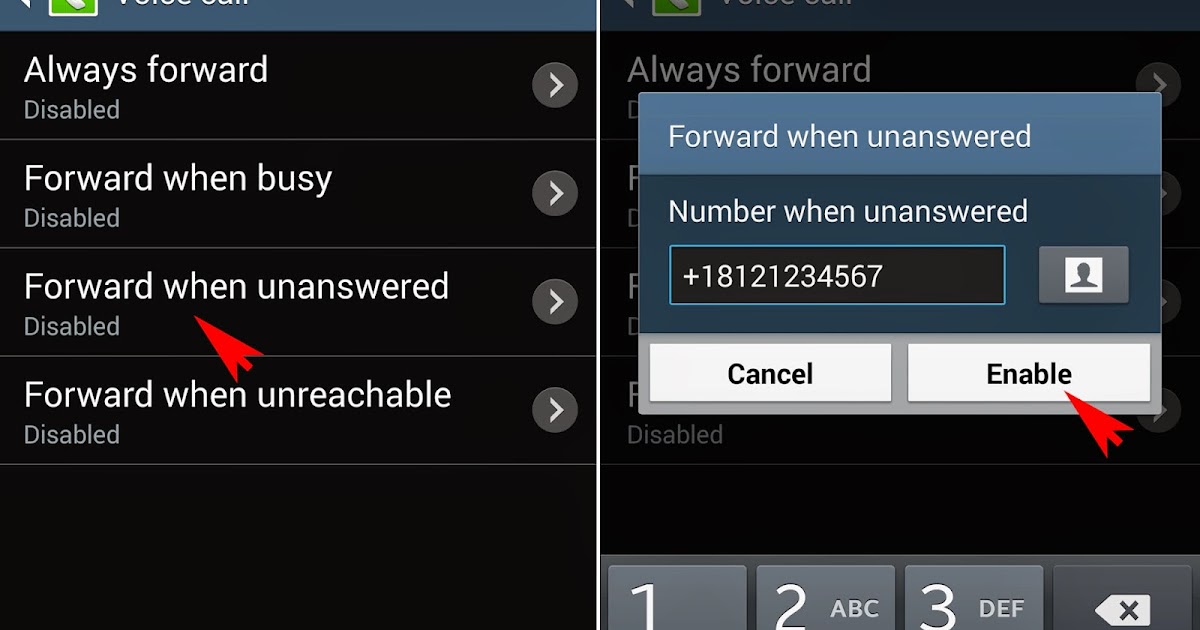
  1. Open the Phone app
  2. Hit the 3-dot menu button or the 3-line menu button.
  3. Go to ‘Settings’ or ‘Call settings’.
  4. Tap on ‘Call forwarding’.
  5. You will see multiple options, including:Always forward: All calls go to your desired secondary number.Forward when busy: Calls go to your secondary number of choice when you are on another call.Forward when unanswered: Calls go to a secondary number when you don’t take a call.Forward when unreached: Calls go to a secondary number when your phone is off, in airplane mode, or has no signal.
  6. After choosing one of the listed options, go ahead and set the forwarding number.
  7. Select ‘Enable’, ‘Turn on’, or ‘OK’.
To cancel call forwarding on Android, just go back to the same settings and hit the ‘Disable’ option when selecting a forwarding number.


Tuesday, August 7, 2018

Top 7 PUBG Mobile Tips & Tricks You Should Know

In this guide, you’ll find some essential tips and tricks that will put you ahead of the pack in PUBG mobile and help you bag those sweet, sweet chicken dinners.

Image result for PUBG Mobile Tips and Tricks

Adjust Graphics Quality

Adjust the graphics quality according to your phone’s capabilities. PUBG Mobile does this automatically, but if you feel like your game is lagging or dropping frames, you can lower it further, and vice-versa. A higher graphics quality setting will definitely make it easier to spot other enemies, but if your phone starts lagging or dropping frame, make the trade-off and opt for a higher frame-rate instead.


Turn on Peek and Fire

In Settings (the settings cog on the top-right), go to Basic. Here, turn on ‘Peek & Fire.’ This allows you to peek from behind cover, allowing you to take shots without exposing too much of yourself. Keep in mind, you’ll still expose your head, so use it with caution.

Image result for pubg peek and fire

Choose where to land very carefully

A game of PUBG can last as long as half an hour or, if things go horribly wrong, it can all be over in a few seconds. One surefire way of exiting early is by misjudging your initial landing spot.

Image result for pubg landing tips
As a general rule of thumb, you want to aim for the best loot spots in the game’s Erangel map (the desert map, Miramar, will launch in a future update) while also avoiding as many other players as possible. There are some particular areas that regularly spawn the best weapons and armor such as the military base, power plant, or the various major towns, but bare in mind that other seasoned players will be heading there too.


Also See : 5 Android Apps that Help You Read Better at Night

Loot first, shoot later

Let me re-emphasize this one last time—if you die in PUBG you are dead. In solo play, there are no second chances, and in squads you’ll be putting your team’s chances of victory at risk if you keep getting downed early.

pubg mobile supply drop


Health items are also a priority. First aid kits are preferable, but bandages, painkillers, and the like will all help in a pinch. Thrown items like grenades will become more important later on as an offensive or distraction tool once the player count has diminished, but don’t be afraid to throw an explosive surprise if you come across an unsuspecting group early on.

Enable The Left Side Fire Button

In Settings -> Basic, enable the ‘left-side fire’ button to easily shoot with the left hand while aiming with the right. This is very handy in scoped shots. Without the left-side fire button, you’ll find yourself aiming and shooting with the same hand, which, believe me, is really difficult.


Hide Inside Vehicles

Sitting in the co-driver seat of a vehicle keeps it off, allowing you to hide inside without alerting other players to your presence. They’ll still be able to see you, but unless you parked your vehicle in the middle of the desert, there’s no reason for most players to suspect that a player may be sitting inside a vehicle and not driving it.


Heal Like a Pro

While healing, you can move for 0.5 seconds without cancelling the action. When in a hurry, start moving when there’s 0.5 seconds of the heal left, giving you a headstart. This comes in handy when the circle is closing up behind you and you need to run quickly, or when you’re taking a short healing-break in the midst of a firefight.

Image result for pubg heaLING

Well, those were 7 PUBG Mobile tips and tricks that ought to help you on your way to becoming an awesome PUBG Mobile player. Use these tricks in order to get better loot, find the perfect PUBG landing spots, and survive till the very end and get that chicken dinner. If you come across some more PUBG tricks that you think we should include here, let us know in the comments section below.